
Buying a new phone soon? Before you personalize any features of the new device, head over to the Permissions menu of the phone. I’m an Android user, so that menu is located in the Settings in the Apps section. By default, your phone settings allow most installed apps that come on your phone to access your camera, contacts, microphone, etc… especially the Google-associated programs. They’re the most intrusive programs out there.
A helpful rule to follow is to limit all permissions possible in an app until it doesn’t function properly. Add them back one at a time, until it works again. Once you see what it requires, then you can decide whether or not the app is worth the risk that it endangers your privacy. There are not many that I take the chance to install. Nothing associated with Google, Facebook, or LinkedIn ever stays on my phone.
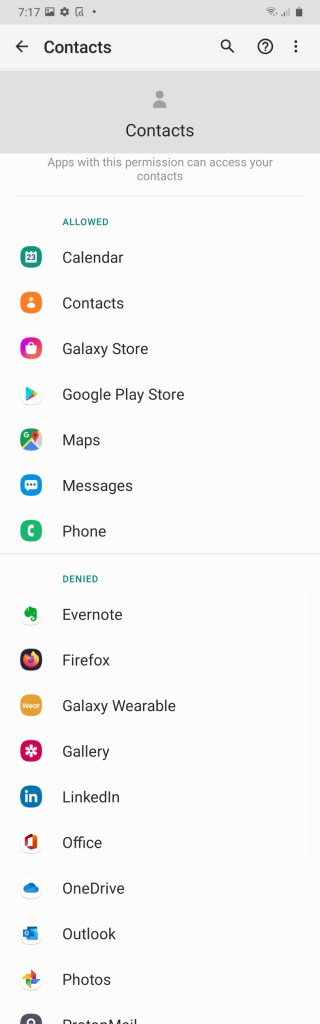
Here are the steps I take to make my phone more private. First, when I set up a new device, I go to a public WiFi spot instead of starting out on my home network. When I power it on, I skip the steps for adding accounts (Google, Outlook, and the phone manufacturer usually request this at setup). I don’t add any of my information or accounts until all the permissions are changed.
Next, I delete and disable all Google applications, folders, widgets, EVERYTHING. Also gone: LinkedIn, YouTube, Facebook, Instagram, Pinterest, all games and other ‘popular’ applications and browsers that were installed by the manufacturer. Some of these can’t be uninstalled, so I select the Disable option.
In order to use the Play Store, you need a Google account, so I use an account that we use only for the Play Store. At this point, I sign in to that account so I can add the privacy applications. We share this Google account, and all we use it for is to download apps on devices. We don’t buy apps, so no payment information goes with this one.
The privacy apps I use are first, a good VPN. Do your own research, but I use the ProtonVPN. We use the free option and the pay account and have been happy with them for several years. Install the VPN and set your account to connect automatically and enable the kill switch, which means if your VPN drops, your connection to websites will drop until the VPN reconnects.
Once I have the VPN working, I can go home to connect to my WiFi network. A privacy-protecting browser is the next requirement. I use Firefox and Brave browsers. Firefox has some great Add-ons for privacy, like uBlock Origin, Privacy Badger, and HTTPS Everywhere. Brave is great because it allows you to have multiple tabs without ‘bleeding’ so Facebook can ‘t see what you’re doing in your other tabs. The reason I’m so careful about browsers is that I still use Facebook, LinkedIn, etc… ONLY in browsers, never applications.
If I use the Google account only for the Play Store, how do I keep my contacts? Google doesn’t know who I know. I save mine the analog way. In my planner book. The only way I use contacts in my phone is to save phone numbers with a nickname on the SIM card. I don’t have that many and I enter them again when I change devices.
With those browsers ready to go, I can start using my personal accounts securely and behind a VPN. Yep, changing devices is a pain when we care about protecting our privacy.
Editing to add that after the first system update to this new phone, many of the permissions were changed, disabled apps were back, and new apps were added to the library. Keeping your phone from being the little spy in your pocket is a constant chore.
 Now Hide Me